tilkbook + Google Calendar integration
Connect tilkbook to Google Calendar in under two minutes. Every booking syncs both ways: new bookings appear on your Google Calendar, and busy time on Google blocks the corresponding slots on your tilkbook page.
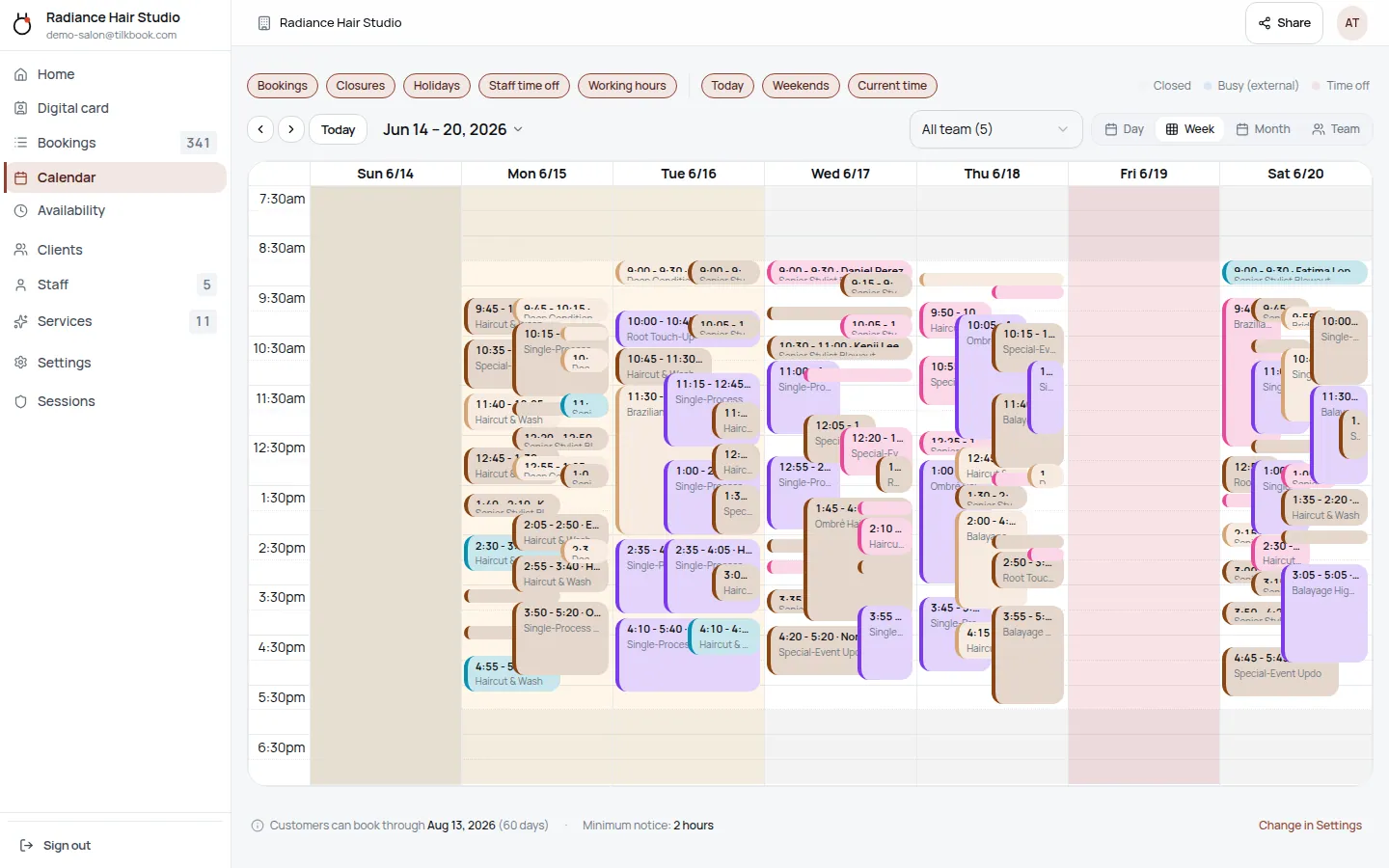
What does the Google Calendar integration sync?
- ↔ New tilkbook bookings push to Google Calendar as events
- ↔ Busy time on Google Calendar blocks tilkbook slots
- ↔ Booking cancellations remove the corresponding Google event
- ↔ Rescheduled bookings update the existing Google event in place
How do I connect tilkbook to Google Calendar?
Open the Integrations page in tilkbook
In your tilkbook dashboard, go to Settings → Integrations and click Google Calendar.
Sign in with the Google account you want to sync
Choose which calendar receives new bookings. Most users pick their primary calendar. You can change this later.
Pick which calendars block tilkbook availability
Tick the calendars whose busy time should block tilkbook slots — usually your primary plus a shared team calendar.
How does the tilkbook Google Calendar integration work?
tilkbook connects to Google Calendar with a genuine bidirectional sync — not a one-way export. When a client books a haircut, massage, or consultation through your tilkbook booking page, that appointment lands on your Google Calendar as a full event within seconds. When you block time off in Google Calendar — a dentist appointment, a school run, a personal errand — that window disappears from your public tilkbook booking page so clients never see it as available. The two systems stay in step automatically through Google’s push webhook API, which means tilkbook receives changes in real time rather than polling on a fixed delay.
Setup is free. Calendar sync is included with every tilkbook plan, including the free booking tier. No upgrade is needed to activate it for yourself or any staff member on your team.
What data syncs between tilkbook and Google Calendar?
The sync is focused and privacy-respecting. Here is exactly what moves in each direction.
tilkbook → Google Calendar:
- New bookings create a Google Calendar event with the service name, client name, and booking time
- Cancelled bookings delete the corresponding Google Calendar event
- Rescheduled bookings update the existing event to the new date and time — no duplicate events created
Google Calendar → tilkbook:
- Busy blocks on your connected Google Calendar mark those time slots as unavailable on your tilkbook booking page
- This covers events from any source: manually created blocks, imported ICS feeds, shared team calendars, and all-day events
tilkbook reads only the start and end times of your Google Calendar events. It never reads event titles, descriptions, attendees, or any other event content. The OAuth2 scope is limited to free/busy data on the calendars you explicitly select during setup.
Does tilkbook work with Google Meet for video appointments?
For services configured with video conferencing, tilkbook can automatically add a Google Meet link to new calendar events. When a client books a video appointment, the Meet link is included in the Google Calendar event and in the booking confirmation email so both sides have it without manual copy-paste. This applies when the service has video conferencing mode enabled in your tilkbook service settings.
This makes tilkbook a practical alternative to scheduling tools like Calendly, Acuity Scheduling, and Setmore for service businesses that already run on Google Workspace.
Can each staff member connect their own Google Calendar?
Yes. Calendar sync is per-person, not per-business. Each staff member on your tilkbook team signs in with their own Google account and selects their own calendars. A hair stylist’s personal Google Calendar blocks their availability independently of the salon owner’s. A personal trainer and a colleague each manage their own connection from their own tilkbook account.
This matters in practice for several common scenarios:
- Freelancers sharing a booking page — each person’s Google Calendar is their own; there is no cross-visibility into another person’s events
- Clinics and wellness studios — practitioners often have separate Google Workspace accounts; each connects independently without touching the others
- Hybrid teams — some staff use Google Calendar sync, others manage availability directly in tilkbook’s built-in availability editor; both approaches work side by side
What happens to recurring appointments and all-day events?
Recurring bookings: tilkbook manages recurring appointments via RRULE recurrence rules. Each occurrence generates its own Google Calendar event. If you cancel one occurrence from tilkbook, only that event is removed — the rest of the series stays intact.
All-day events on Google Calendar: tilkbook treats all-day events on your connected Google Calendar as full-day busy blocks. An all-day event labelled “Conference” or “Holiday” on your Google Calendar will mark that entire day as unavailable on your tilkbook booking page.
Time zones: tilkbook respects your business time zone setting. Google Calendar events are converted to your business time zone when tilkbook reads busy blocks, so a 9 AM event in EST blocks the right slot even if a client is booking from a different time zone.
Why connect Google Calendar instead of managing availability directly in tilkbook?
Most service business owners already live in Google Calendar. They block personal time there, accept external meeting invites there, and their Google Workspace calendar is the one they check every morning. Without sync, managing availability means maintaining two separate systems — which quickly leads to double-bookings and missed gaps.
Connecting tilkbook to Google Calendar makes your booking page an accurate, real-time reflection of your actual schedule. Your confirmed client appointments also appear alongside your personal events, so you always have a single view of your day in one place.
For teams on Google Workspace, this is far simpler than maintaining manual availability blocks in a separate tool. Unlike a static ICS export — which is one-directional and only refreshes on a schedule — the Google Calendar integration uses push webhooks for near-instant updates in both directions.
Compared to tools like Calendly or Acuity Scheduling, tilkbook offers the same depth of Google Calendar integration with no per-booking fees and no subscription required for the sync itself. iCloud Calendar and Outlook users can also connect via the ICS feed path — see Apple Calendar / ICS integration for that approach.
Setting up Google Calendar sync: step by step
- Open Settings → Calendar in your tilkbook dashboard — or navigate to Settings → Integrations and select Google Calendar
- Click Connect Google Calendar — you will be redirected to Google’s OAuth2 consent screen
- Sign in with the Google account whose calendar you want to connect
- Choose which calendar receives new bookings — your primary calendar is selected by default
- Select which calendars block your availability — tick any calendar whose busy time should hide slots on your public booking page
- Save — tilkbook runs an initial sync immediately; future changes arrive via push webhook
The entire process takes under two minutes. You can reconnect, change which calendars are included, or disconnect entirely at any time from the same settings page.
For related configuration, see calendar sync features and the full integrations directory. For questions about accepting payments at booking, see the Stripe integration. To learn what is included on the free plan, visit pricing.
Integration FAQ.
Is the Google Calendar integration free?
Yes — it's included on every tilkbook plan, including the free tier.
Does tilkbook see the content of my calendar events?
tilkbook reads start and end times only — never the event title, description, or attendees. Calendar privacy is enforced at the OAuth scope level.
How do I disconnect Google Calendar from tilkbook?
Go to Settings → Integrations → Google Calendar and click Disconnect. You can also revoke access from your Google account permissions page at myaccount.google.com.
What if my Google Calendar event is moved after the booking is made?
The booking on tilkbook stays at its original time. We do not auto-reschedule clients based on calendar moves on the staff side. The staff member needs to reschedule the booking from tilkbook (which then updates Google Calendar to match).
Connect your calendar.
Free to start — no card. Two-way sync on every plan, including free.